How to use PosturaScreen — step by step.
A personal one-off report needs no account. Sign in only when you want saved history or a professional client workflow; either path takes just a couple of minutes.
The flow is the same for both — wherever it differs, look for the clinic or solo tag on the step.
Choose a one-off screen or saved history
Before you start: you need a browser (desktop, laptop, or phone), a phone camera if you want to capture with QR, and a clear wall with about two metres of floor in front of it and even lighting. Nothing to install on either device.
Solo Open app.posturascreen.com/try, add a photo, and view the report without registering. Create a Free Personal account only from the result page if you decide to keep it.
Clinic Sign in with Google or email to enter the client dashboard. Each practitioner account has its own dashboard and clients; other accounts cannot see your records. Professional plans add unlimited client records, assessments, and clinic branding. For how the workflow fits a practice, see posture screening software for clinics.
Add the person you're screening
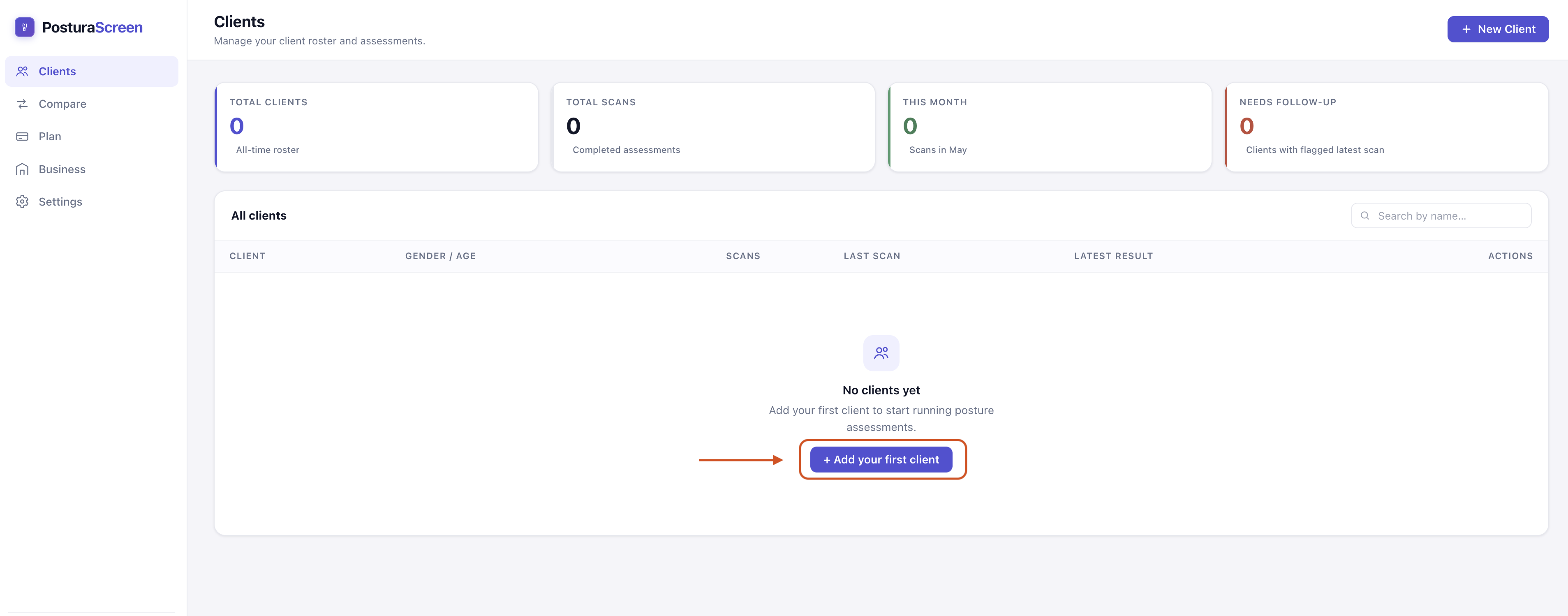
Click + New client on the dashboard. Enter Name, Gender (used by gender-aware metrics like Q-angle), and Age. Hit Create client.
Clinic Add one entry per client. Every future assessment links back to the same profile, so you can track progress over time.
Solo Add yourself (or a family member) as a “client” — same screen, you're just the one being screened. Use your own name and details.
Start a new assessment
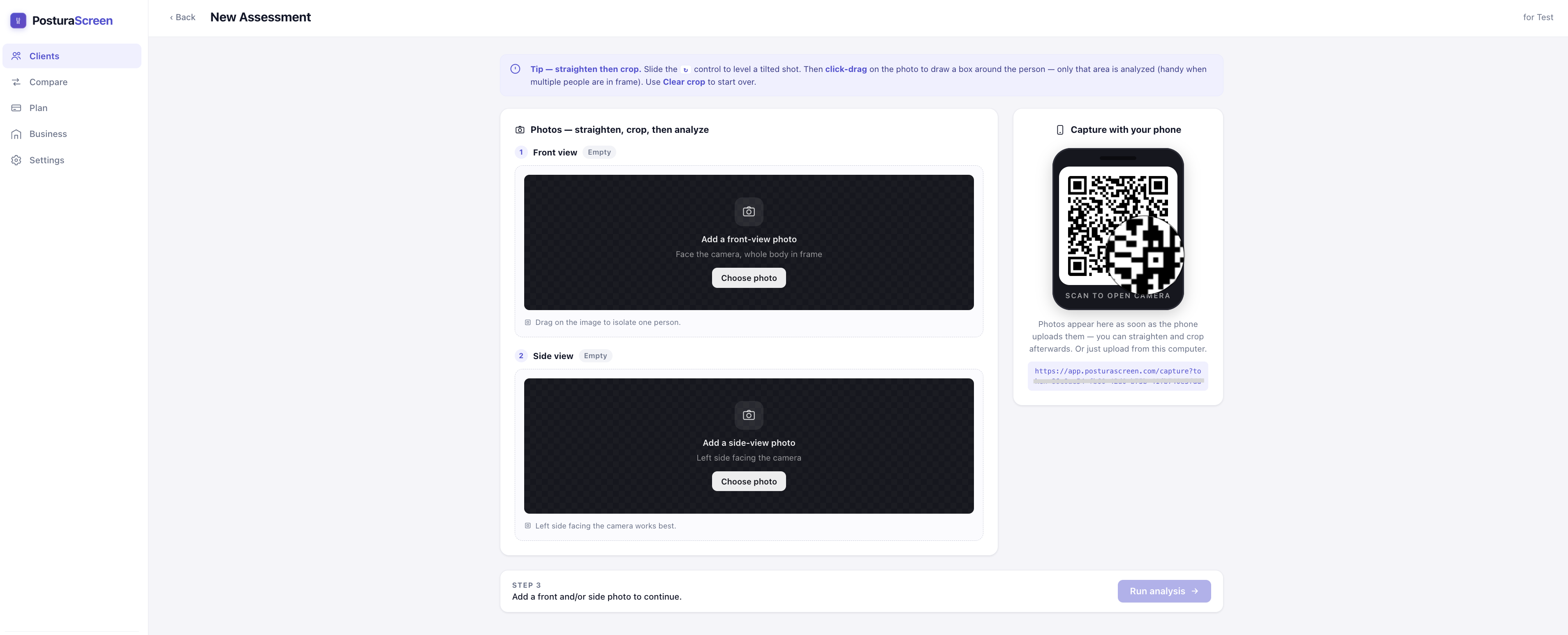
On the profile page, click + New Assessment (top right). This creates a fresh record that your photos and results attach to, so the same person builds a history for comparison. Free Personal includes three saved assessments each month; Pro and Clinic plans allow unlimited assessments.

Capture one or both views
One full-body photo is enough to start: a front view (facing the camera) returns the 11 front metrics, and a side view (standing fully side-on) returns the 6 side metrics. Add both for the complete 17-metric report. Two ways to capture them:
By phone (recommended)
Point any phone's camera at the QR code on the right of the screen. It opens a capture page — no app install, no login. Choose a front or side view, take the photo, add the other view if you want all 17 metrics, then hit Done. The images appear on your computer automatically.
Upload from your computer
If you already have the photos, click Choose photo in the “Add a front-view photo” box, the “Add a side-view photo” box, or both. JPG or PNG, any reasonable size.
Clinic Stand the client far enough from the phone that their whole body — head to feet — fills about two-thirds of the frame height (roughly 2 m on the 1× lens or 3 m on 2×, our estimate), and take the shots yourself.
Solo Screening yourself? You can't hold the phone and still be fully in frame, so prop it against a wall or shelf (or use a small tripod) far enough back that your body fills about two-thirds of the frame height — roughly 2 m on the 1× lens or 3 m on 2×, our estimate (how to frame posture photos) — then use the phone's 3-second timer or a volume-button shutter — or simply ask someone to take the photos. The one rule that matters: your whole body, head to feet, has to be in the frame.
Before you shoot: skim the photo tips below — they prevent most “no human detected” errors.
Run the analysis~5 seconds
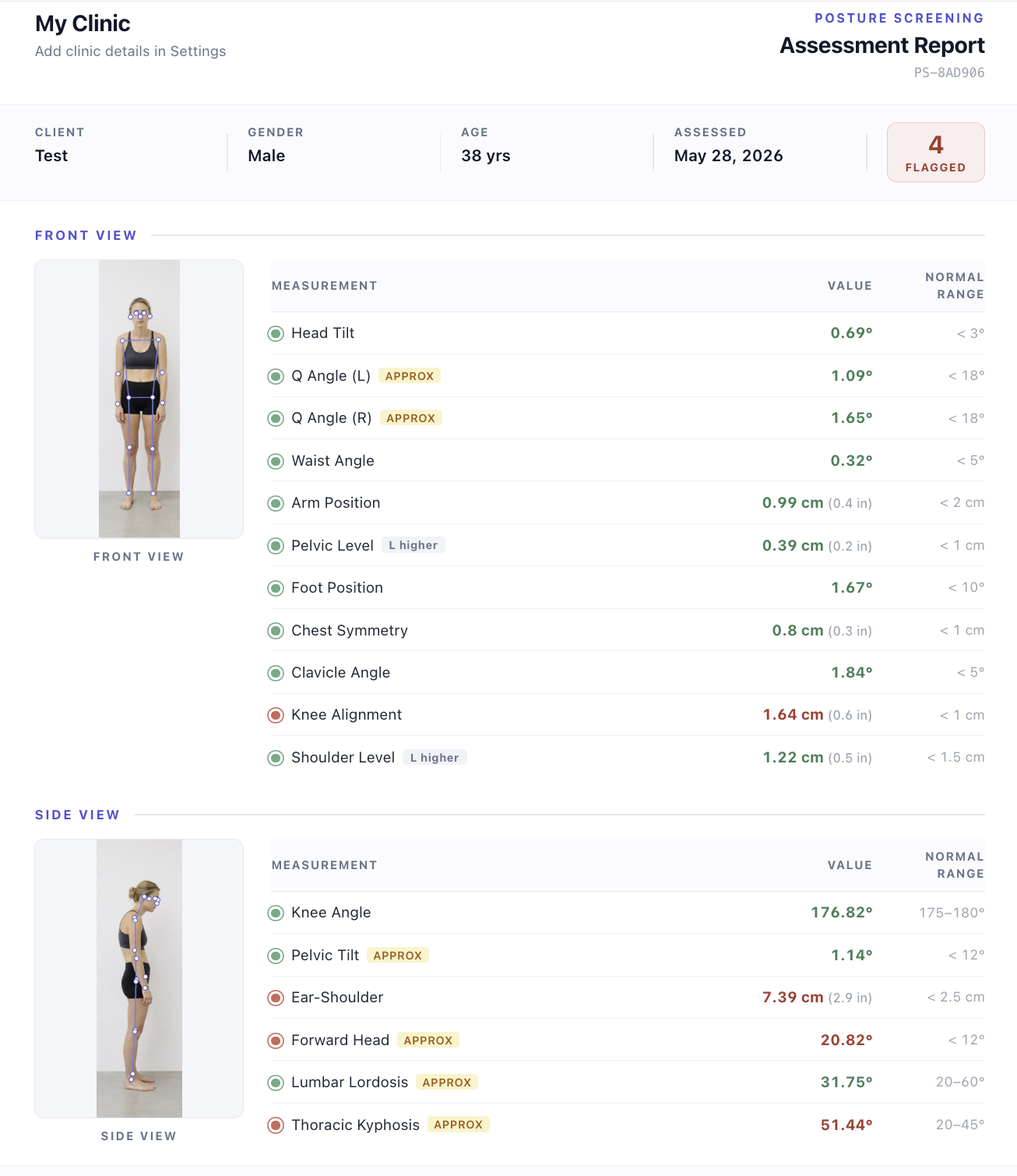
Once at least one photo is in place, click Run analysis. The AI finds 17 body keypoints (joints, eyes, ears, nose) on each photo, computes the posture metrics available from the views you added, and draws the skeleton on a copy of each photo so you can see exactly what it measured.
The first run of the day can take up to ~30 seconds while the service warms up. After that it's a few seconds per assessment.
Read the 17-metric report
A front photo gives 11 front-view metrics (head tilt, shoulder level, pelvic level, Q-angle, etc.) and a side photo gives 6 side-view metrics (forward head, ear-shoulder offset, thoracic kyphosis, lumbar lordosis, pelvic tilt, knee angle); with both you see all 17. Each row shows the measured value, a normal range, and a flag:
· Green means the value is within the typical range.
· Red means it's outside that range — a screening signal worth a closer look, not a diagnosis.
· The approx tag appears on Forward Head, Thoracic Kyphosis, Lumbar Lordosis, Pelvic Tilt, and Q-angle (L/R) — a 2-D photo can only estimate these, so they are best used to track change in the same person over time. The other eleven metrics are direct geometric measurements from the detected keypoints.
The annotated photos at the top show the exact landmarks the AI used to compute each metric — useful for spotting a photo where a landmark was obviously misread.
A red flag means “look closer,” not “something is wrong.” If a result concerns you, or comes with pain, stiffness, or other symptoms, take the report to a licensed physiotherapist, chiropractor, or physician. For a calm way to respond to a number, see what to do after a posture screening; to preview the layout first, browse the sample report.
APPROX tags appear next to the five estimated metrics.Save as PDF and share
Use the report’s print button to print or save the photos and measurements as a PDF. Saved assessments also include a separate summary of flagged measurements.
Clinic Hand the PDF to the client at the end of the session, or email it. On Pro and Clinic plans it carries your clinic name, address, and practitioner details.
Solo Save the PDF for your records, share it with your trainer or physio, or just keep it as a baseline to compare against next time.
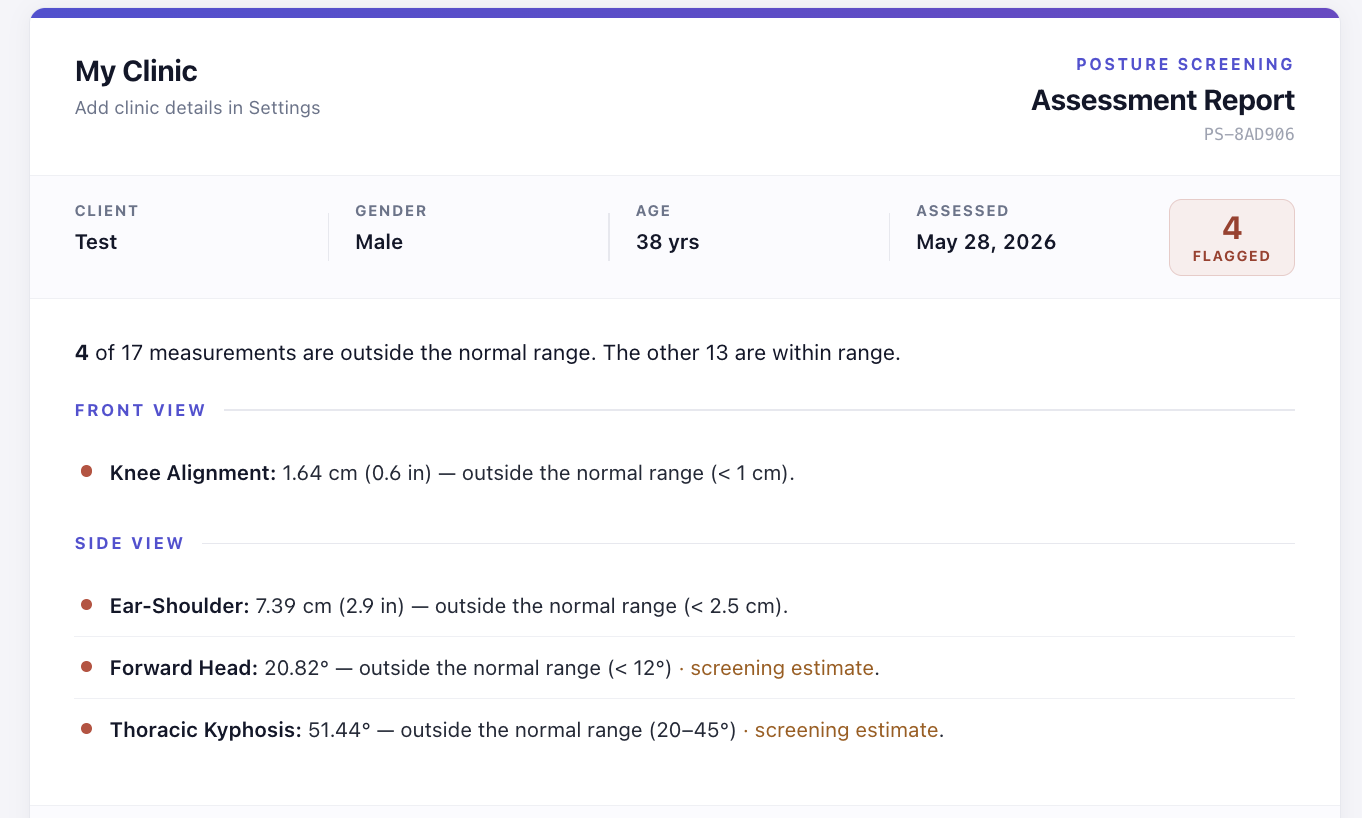
screening estimate tag where the metric is approximated from a 2D photo.Re-screen later and compare
Every 4–6 weeks, run a second assessment for the same profile. Then open the profile, click ⇄ Compare, pick the two assessments, and see each metric side by side — baseline vs latest, with the delta.
Compare shows whether each displayed value increased, decreased, or stayed the same. These differences alone do not establish improvement or worsening.
How often: every 4–6 weeks during an active programme; once or twice a year for a maintenance check-in; and right after a change (a new desk setup, a new sport, recovery from an injury), then again six weeks later to see whether it shifted anything.
Get a clean, full-body shot.
Most “no human detected” errors and odd readings come down to the photo. A few seconds of setup makes the analysis far more reliable.
Common questions & troubleshooting.
Is PosturaScreen free to use?
Do I need to install an app on my phone?
I get "No human detected" when I run analysis. What now?
The QR code on my screen — my phone won't open it.
What does the "approx" tag on some metrics mean?
A metric is flagged red. Does that mean something is wrong?
How often should I re-screen?
Are the photos and reports private?
Ready to run your first screen?
Personal screening is free with no trial, account, or card required.
Screen without an account