How to Use PosturaScreen: A Step-by-Step Walkthrough
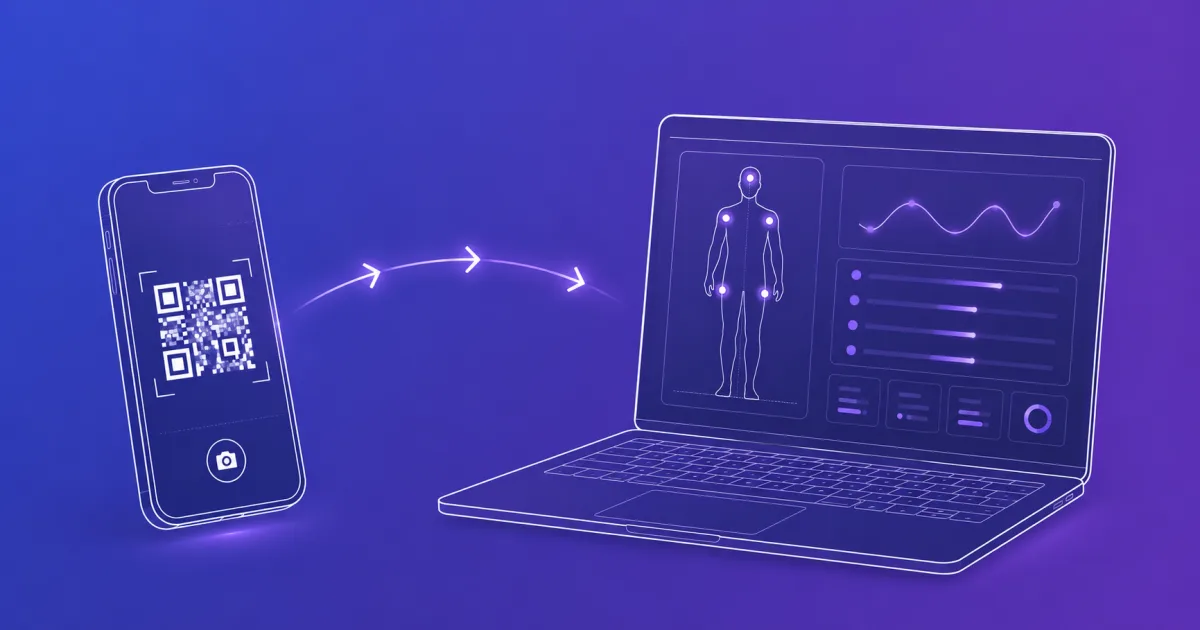
PosturaScreen’s personal one-off posture analysis is free and needs no account or app. One full-body photo returns the metrics visible from that angle; add both front and side views for all 17. Once a photo is uploaded, the AI analysis usually finishes in about five seconds, although the first run can take up to about 30 seconds while the service starts. The full capture-to-report flow takes a couple of minutes.
- Free one-off workflow: add a photo → run analysis → read the temporary report. No account or app required.
- The PC is the main screen; the phone is just the camera — scan a QR and take one or both views, with no app to install.
- Each view returns its own metrics; use both views for all 17 (11 front, 6 side), with normal ranges and green/red flags.
- Five metrics carry an
approxtag — they are estimates from a 2D photo, best used to track change over time. - Run a second assessment after 4–6 weeks and use the Compare view to see what improved.
Before you start
You need three things: a desktop or laptop with a browser, a phone with a camera, and somewhere to take a clean photo — a clear wall is enough, two metres of clear floor in front of it, and even lighting. The whole flow takes about two minutes once you’re set up, most of which is the photo itself.
PosturaScreen runs in the browser, so there is nothing to install on either device. The phone and computer just need to be online when the photos sync.
Step 1 — Choose one-off or saved history
For a personal one-off report, go straight to the free posture screen and add a photo without registering. The report remains temporary for 24 hours unless you explicitly save it.
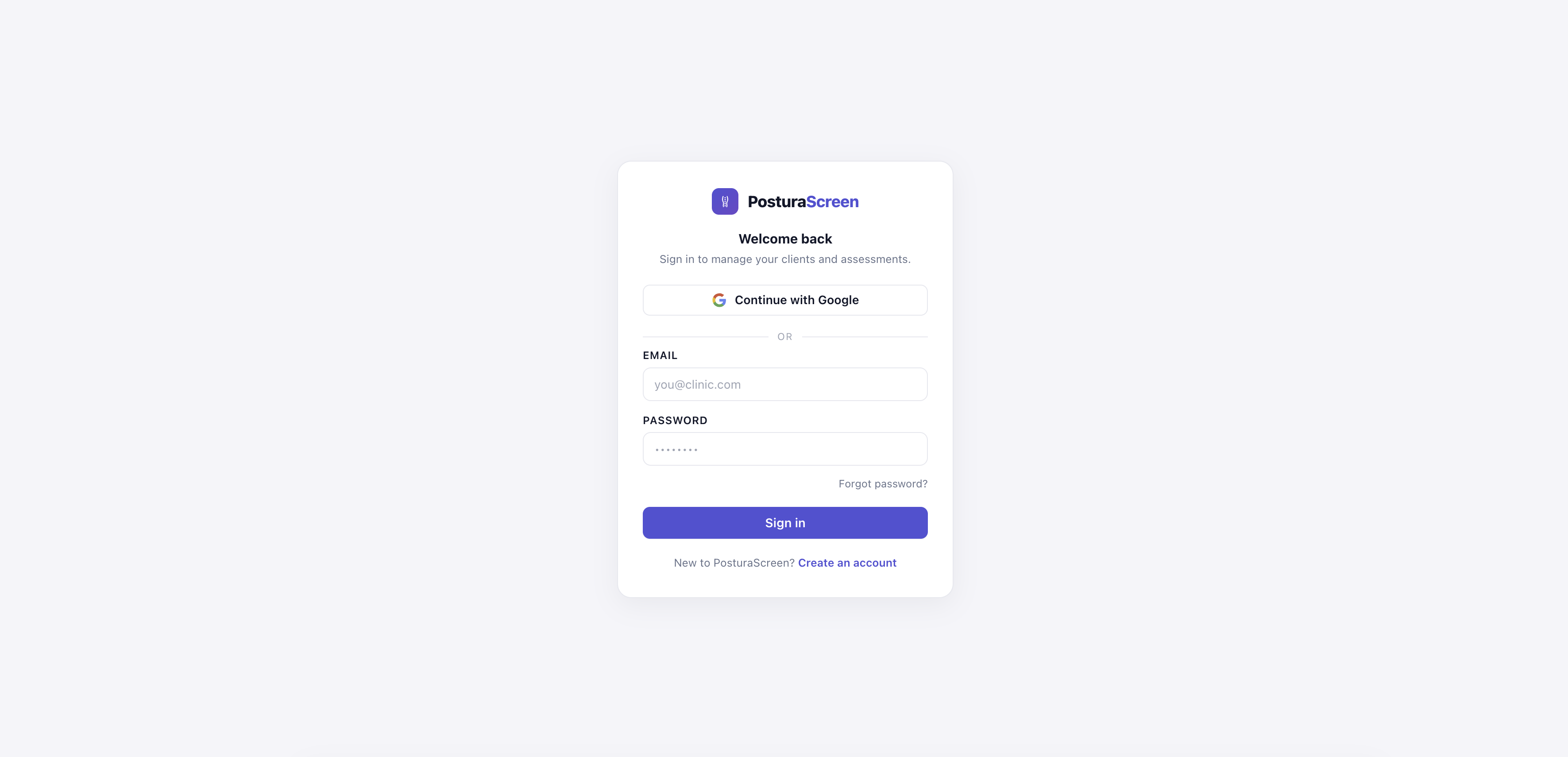
For saved history or professional client work, sign in with Google or create an account with email and password. Free Personal stores one person and three assessments each month; Pro adds unlimited client records, assessments, and clinic branding.
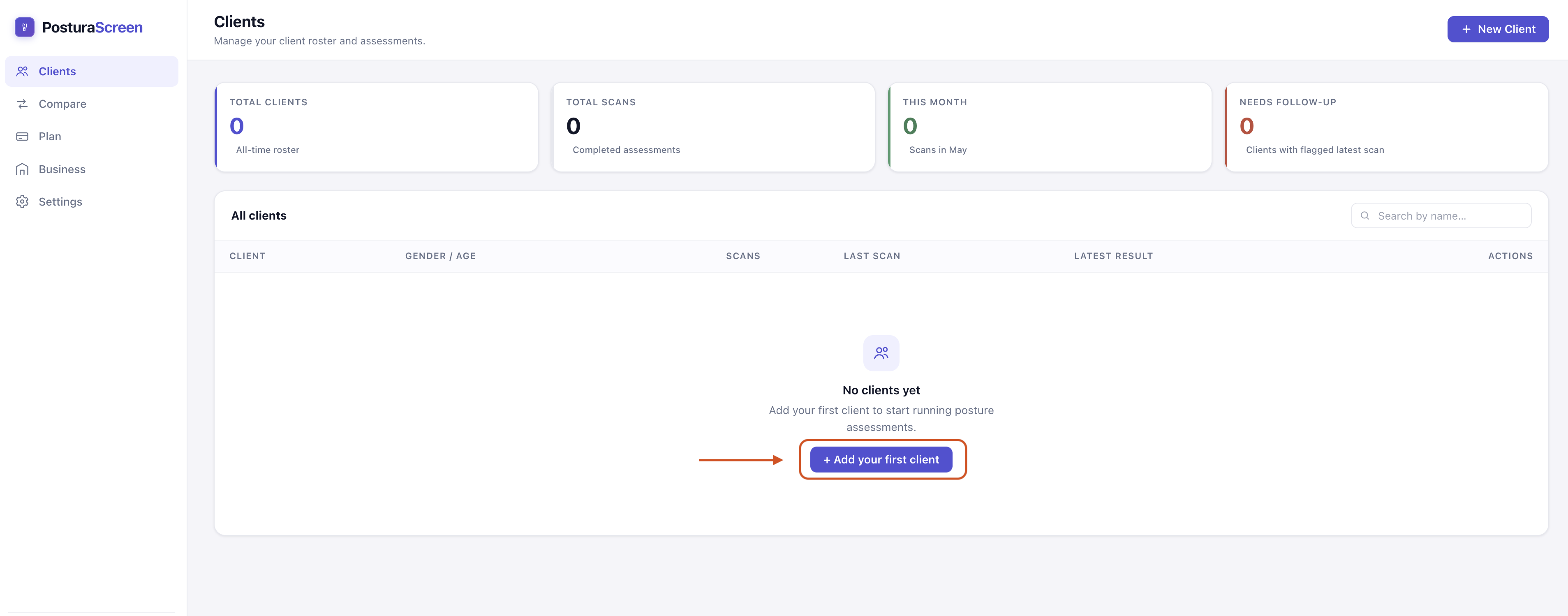
After signing in you land on your dashboard. If you have used the app before, your clients appear in a list. If this is your first time, the list is empty with a + Add your first client button.
Clinic Each clinician account has its own dashboard and clients. Other accounts in your clinic cannot see your records. For how the workflow fits a practice, see posture screening software for clinics.
Solo The same dashboard works — you’ll add yourself as the only “client” in the next step.
Step 2 — Add the person being screened
Click + New client on the top right. The dialog asks for Name, Gender, and Age.
- Gender is used by gender-aware metrics — the normal range for Q-angle, for example, is wider for women than men. It is not displayed prominently on the report.
- Age appears on the report and helps you organise the list later.
Hit Create client. The new profile appears in your dashboard list.
If you are screening yourself, just enter your own details — you are the “client”. Despite the label, the data stays in your own account; nobody else can see it.
Step 3 — Start a new assessment
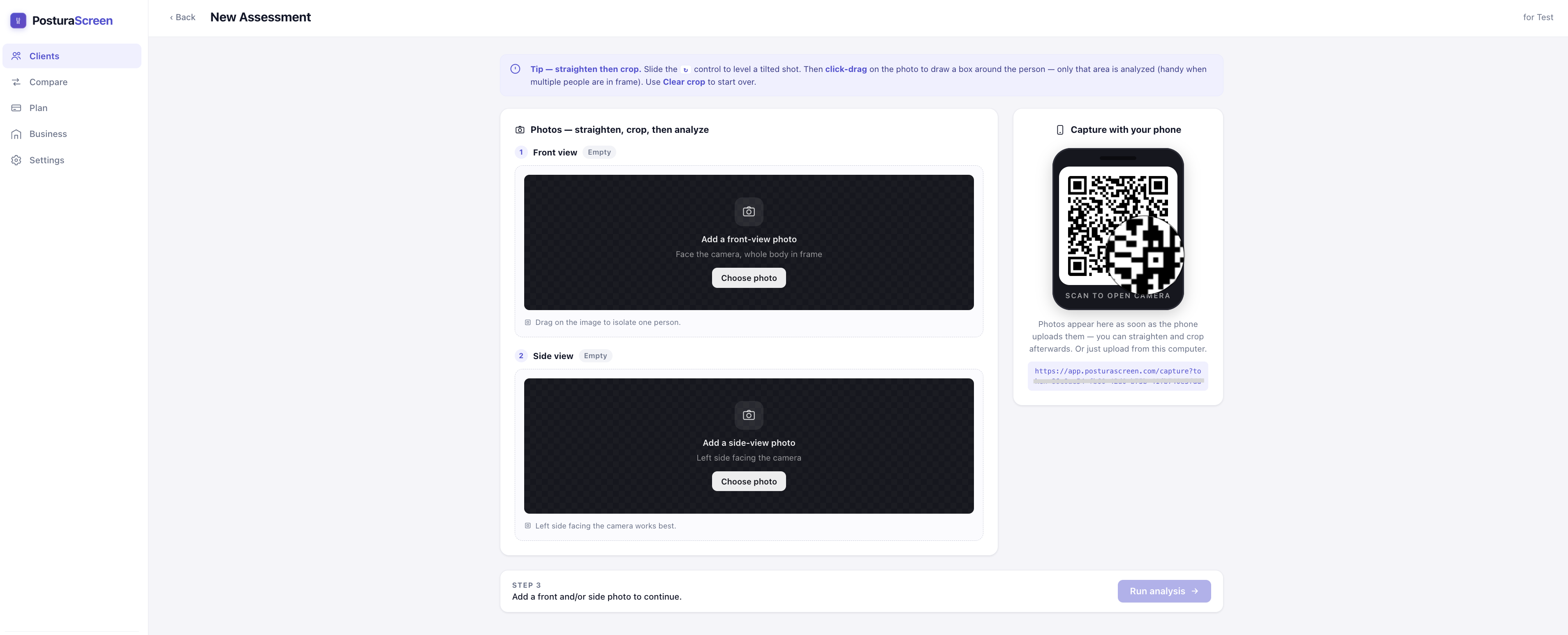
Click the profile to open it. You’ll see the client’s history (empty for a new profile) and a + New Assessment button in the top right. Click it.
Each assessment is its own record, so the same saved person can build a history for comparison. Free Personal includes three saved assessments each month; active Pro and Clinic plans allow unlimited professional assessments.

Step 4 — Capture one or both views
You need at least one full-body photo: front (the person facing the camera squarely) or side (the person fully side-on). A front photo returns the 11 front-view metrics, a side photo returns the 6 side-view metrics, and adding both produces the complete 17-metric report. Every photo you add must show the whole body, head to feet.
Option A — by phone (recommended)
Open your phone’s built-in camera app and point it at the QR code on screen. A capture page opens in the phone’s browser — no app install, no login. Choose a front or side view, take or pick the first photo, then add the other view if you want the complete 17-metric report. Hit Done when you have the view or views you need.
As soon as each photo uploads, it appears on the computer screen automatically. You can crop or replace either one before running the analysis.
The QR link is single-purpose and expires after 30 minutes. If it has been longer, refresh the assessment page on the computer to generate a fresh QR.
Option B — upload from the computer
If you already have the photos (taken with a separate camera, sent over by email, etc.), click Choose photo in either or both slots on the left. JPG and PNG both work, at any reasonable size.
How to take a good photo
Most of the rare “no person detected” errors come down to the photo. Five rules cover most cases:
- Whole body in frame — head to feet, nothing cut off.
- Plain background — a clear wall, no clutter.
- Even lighting — no strong backlight or harsh shadows.
- Form-fitting clothing so body contours are visible.
- Stand naturally — don’t “fix” the posture for the photo.
Position the camera at hip height, around two to three metres away, held level. For the front view, face the camera squarely with arms relaxed at the sides. For the side view, stand fully side-on with the whole body visible.
Step 5 — Run the analysis
Once at least one photo is in place, the Run analysis button at the bottom becomes active. Click it.
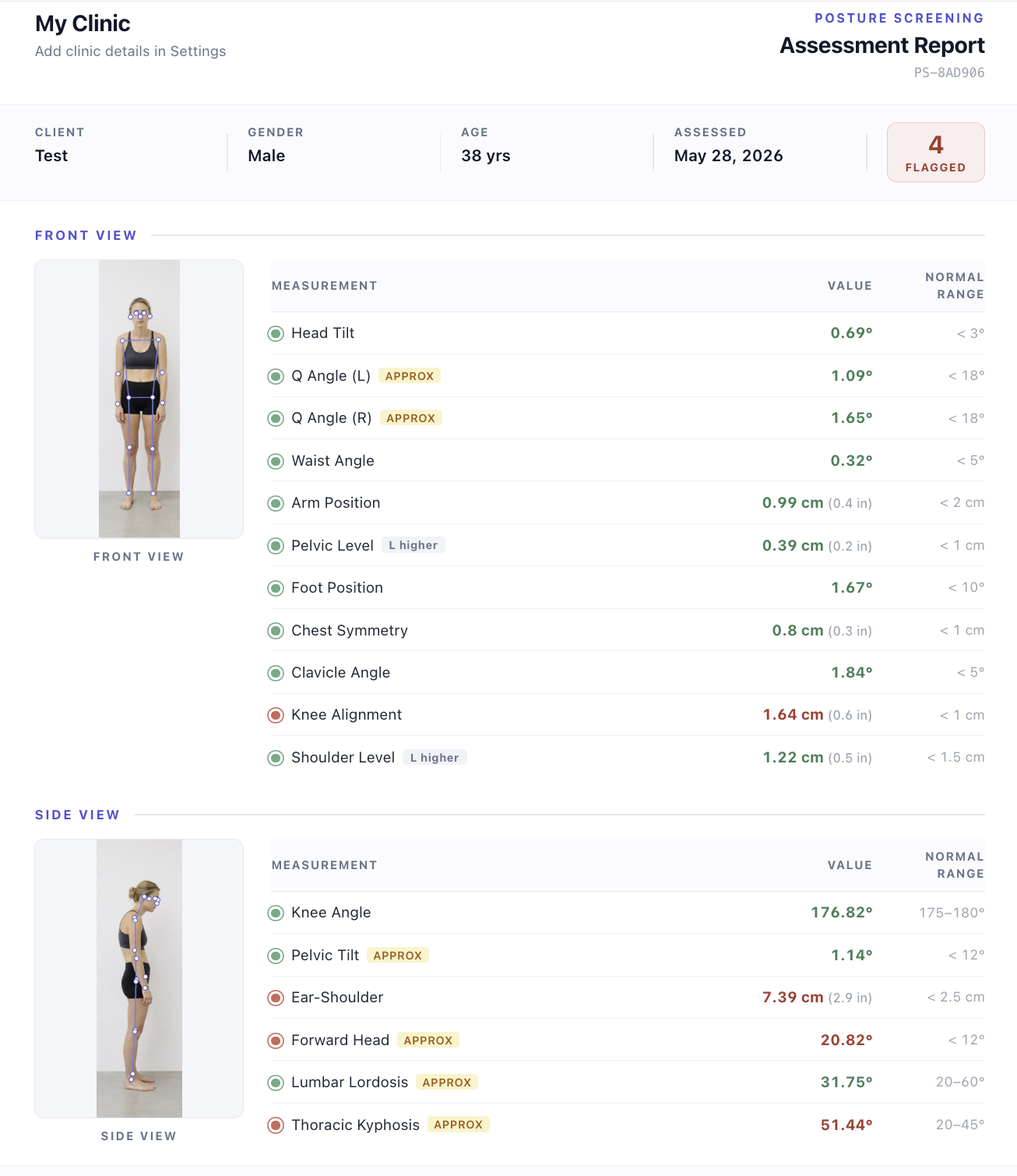
Behind the scenes, an AI pose-detection model finds 17 anatomical landmarks on each uploaded photo — the joints, the centres of the head and pelvis, and so on — then computes the available posture metrics from those points. It also draws the skeleton onto a copy of each photo so you can see exactly what it measured.
The first analysis of the day can take up to about 30 seconds while the service warms up. After that it is around five seconds per assessment.
When it finishes, you are taken straight to the report. If the AI cannot find a full body in an uploaded photo, you’ll see No human detected. Use a clear full-body photo. — re-shoot following the rules above.
Step 6 — Read the 17-metric report
If you want to see the finished article before you generate your own, browse a sample report — it shows the same layout described below.
The report opens on a single page split into two parts:
- Top — one or two annotated photos with the detected skeleton drawn on top. This is the AI’s “show your work” — useful for spotting cases where it has obviously misread a landmark.
- Below — the metrics available from the view or views you supplied, up to all 17, each with a measured value, a normal range, and a flag.
What the flags mean
- Green means the value falls inside the published normal range for that metric.
- Red means it falls outside the range — a screening signal, not a diagnosis. It is a starting point for a closer look, not an answer in itself.
A red flag means “look closer,” not “something is wrong.” If a result concerns you — or comes with pain, stiffness, or other symptoms — take the report to a licensed clinician (a physiotherapist, chiropractor, or physician) for a hands-on assessment. PosturaScreen is a screening and tracking tool, not a diagnostic device.
For a practical way to respond without overreacting to a number, use the post-screen next-steps guide: it covers a brief movement break, what to record, when to re-check, and when symptoms call for professional care.
What “approx” means
Five metrics carry an approx tag: Forward Head, Thoracic Kyphosis, Lumbar Lordosis, Pelvic Tilt, and Q-angle (left and right). The reason is honest: a single 2D photo cannot directly measure these the way an X-ray or 3D scan can. PosturaScreen estimates them from the angles between detected joints, which is reliable enough for screening and for tracking change in the same person over time — but not the right tool for a clinical diagnosis. We tag them so the limitation is on the page where it matters.
The other eleven metrics — head tilt, shoulder level, clavicle angle, chest symmetry, arm position, waist angle, pelvic level, knee alignment, foot position, ear-to-shoulder offset, and knee angle — are direct geometric measurements from the detected keypoints and don’t carry the tag.
Step 7 — Save as PDF and share
Click Print / PDF in the toolbar. This triggers the browser’s standard print dialog: the first page carries the available annotated photo or photos and metric table; the next page is a focused summary of the flagged measurements, with a one-line explanation of each.
Choose Save as PDF as the destination if you want a file instead of a printout, or pick a printer for a paper copy.
Clinic Hand the PDF to the client at the end of the session or email it. It is written to be readable without you in the room.
Solo Save the PDF as your baseline. Share it with a trainer or physio if you have one, or just keep it for comparing against your next screen.
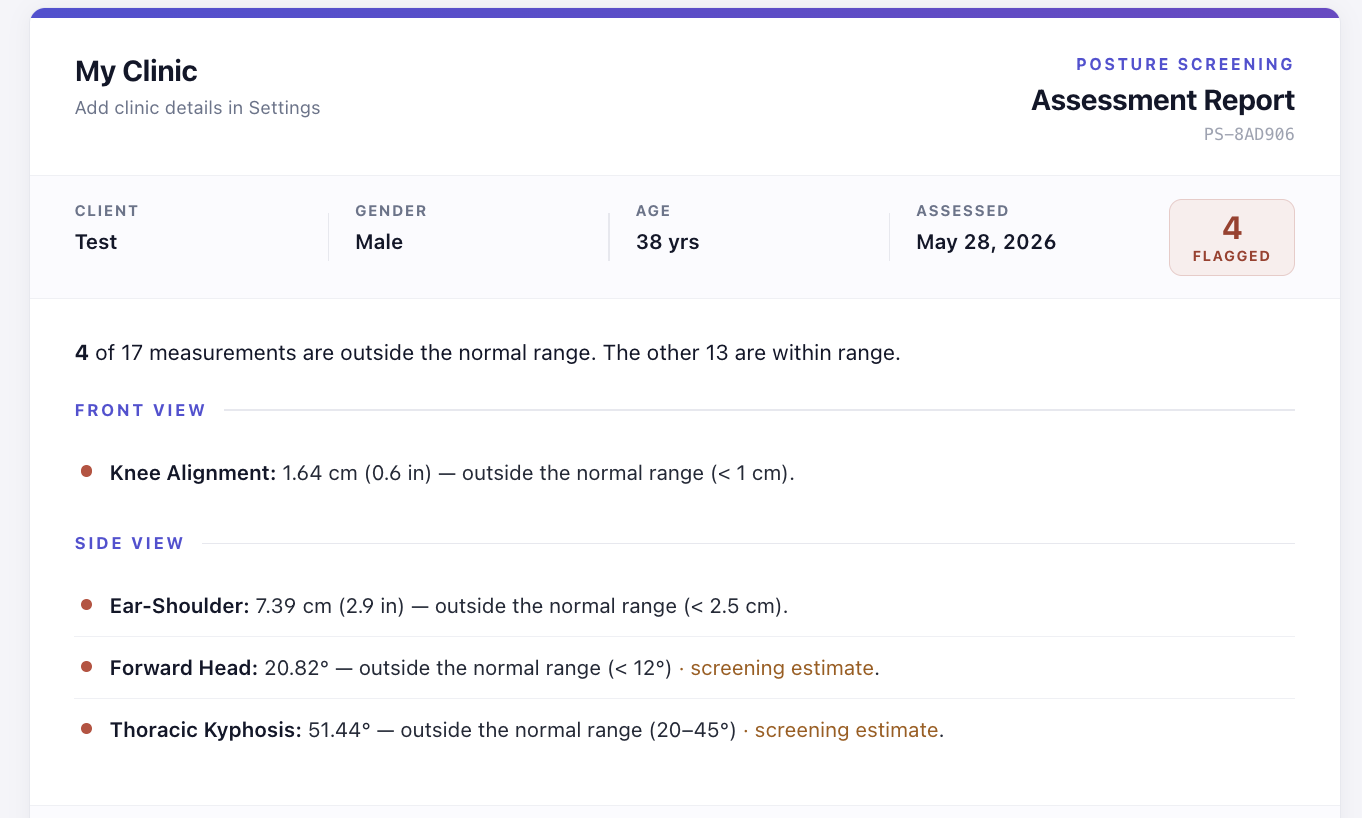
screening estimate tag where the metric is approximated from a 2D photo. Designed to be the page a client actually reads.Step 8 — Re-screen later and compare
Real value comes from the second assessment, not the first. After four to six weeks of whatever programme the person is on, run a fresh assessment on the same profile.
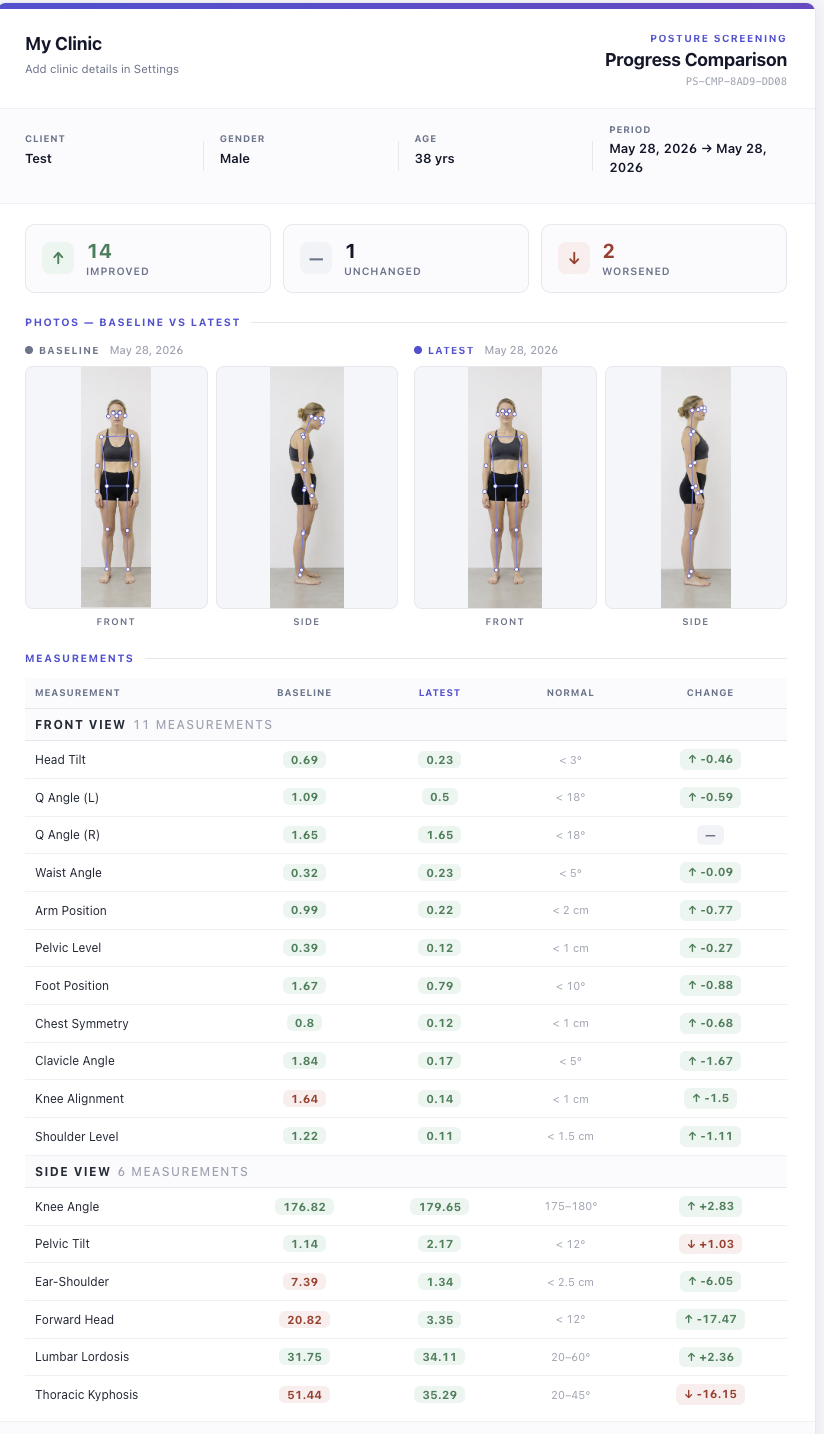
Then open the profile, click ⇄ Compare in the toolbar, and pick the two assessments you want to compare. The Compare view shows the baseline and the latest side by side, with the delta for each metric: improvements in green, regressions in red.
This is the artefact that turns a one-off photo into a programme. You can Print / PDF the Compare view too — clients see their progress with their own eyes, which is more persuasive than any verbal summary.
How often to re-screen
A few reference points for the cadence:
- Active programme — every 4 to 6 weeks. Long enough for soft-tissue change to register, short enough to stay motivating.
- Maintenance / yearly check-in — once or twice a year is fine.
- Right after a change — if someone has just changed their desk setup, started a new sport, or recovered from an injury, screen at the change and again after six weeks to see whether the change shifted anything.
Frequently asked questions
Is PosturaScreen’s online posture analysis free?
Yes. A personal one-off posture screen is free with no trial, account, or app required. Start with one clear front or side full-body photo, then add the second view for all 17 measurements. The temporary report stays available for 24 hours unless you explicitly save it.
Do I need to install an app on my phone to use PosturaScreen?
No. The web app shows a QR code; scan it with your phone’s built-in camera and take either a front or side photo on the page that opens. Add the other view for all 17 metrics. The images sync back automatically, with no app install or phone login.
Why do I get a “No human detected” error?
The AI couldn’t find a full human body in the photo. The two most common causes are a partial body (head or feet cut off) and a busy or backlit background. Re-take with the whole body in frame, against a plain wall, in even lighting. The photo tips section covers this in full.
What does the “approx” tag on some metrics mean?
Five metrics carry an approx tag — Forward Head, Thoracic Kyphosis, Lumbar Lordosis, Pelvic Tilt, and Q-angle (left and right). A single 2D photo cannot directly measure these the way an X-ray or 3D scan can, so PosturaScreen estimates them from joint angles. They are useful for screening and for tracking change in the same person over time, not for a clinical diagnosis.
How often should I re-screen the same person?
For tracking progress while someone is actively working on their posture, every 4 to 6 weeks is a useful cadence — long enough for change to show up, short enough to stay motivating. For a yearly check-in with no active programme, once or twice a year is fine.
Is PosturaScreen suitable for personal use, or only clinics?
Both. A personal one-off screen needs no account. Free Personal stores one person, includes three saved assessments each month, PDF export, and comparison. Pro adds unlimited client records, assessments, and clinic branding for practitioners.
Where to next
That is the full loop: choose a one-off screen or sign in for history, capture, analyse, read, and optionally re-screen. From a cold start it takes a couple of minutes. One photo gets you started; the second view completes all 17 metrics, while comparison, PDF, and history are there when you want to keep tracking.
If you want to go deeper on what each metric actually measures and where the normal ranges come from, see the metrics page and the methodology page.
Free posture screening, in seconds.
Start with one photo. Add the second for all 17 metrics. No account or app required.
Start a free posture screen